The purpose of this guide is to help you seamlessly transition from personal token authentication to the more secure OAuth 2.0 with mTLS.
Migrating from a personal token to OAuth 2.0 is for "first party" partner accounts. These partners are the direct customer of Wise and transacting with their own account.
Key differences between personal tokens and OAuth+mTLS authentication:
- Account receives a set of access and refresh tokens.
- Tokens expire and must be refreshed regularly via the API.
To understand the basics of OAuth 2.0, see our Security and access guide.
To understand the basics mTLS, see our Enhanced Security guide.
For more in-depth resources:
We recommend you do the migration in our Sandbox test environment first, and only move to Production once you have verified that all business flows are working as expected.
If you are using Wise OAuth credentials, you can proceed straight to step 5 to set up mutual authentication.
You will need to fill out the form your Customer Success Manager (CSM) sent you to get client credentials. Also be sure to include User IDs for Sandbox accounts, which you can create if you do not have any. Contact your CSM if you're not sure how to get client credentials.
To create a Sandbox account, use the Sandbox UI.
Construct a sandbox authorization page URL with your client_id and redirect_uri and navigate to that page.
https://wise-sandbox.com/oauth/authorize/?client_id=yourapp&redirect_uri=https://www.yourapp.com
Select your business account on the Wise authorisation page and give your application permission to connect to Wise.
You will be redirected back to your redirect URL with some additional query parameters.
If you get an error at this point, this could be due to an incorrect redirect URI (see step 1).
Authorization code. Use it to generate a user access token.
The profile ID that the Wise user granted you access to.
https://www.yourapp.com/?code=ABCDEF&profileId=30000000
Use the authorization code to obtain user access token and refresh token.
- Production Environmenthttps://api.wise.com/2026Q3/oauth/token
- Sandbox Environmenthttps://api.wise-sandbox.com/2026Q3/oauth/token
- curl
- JavaScript
- Node.js
- Python
- Java
- C#
- PHP
- Go
- Ruby
- R
- Payload
- client_credentials
- registration_code
- authorization_code
- refresh_token
curl -i -X POST \
  -u <client_id>:<client_secret> \
  https://api.wise.com/2026Q3/oauth/token \
  -H 'Content-Type: application/x-www-form-urlencoded' \
  -H 'X-External-Correlation-Id: f47ac10b-58cc-4372-a567-0e02b2c3d479' \
  -d grant_type=authorization_code \
  -d 'client_id=<client id>' \
  -d 'code=<auth code from redirect uri>' \
  -d redirect_uri=https://www.yourapp.com
You can also have a look at the example in Postman.
Reference generating a CSR and getting a certificate.
When successfully linked, the integration will be visible on the settings page.
You can now test your business flows in the sandbox.
The partner account integration guide contains information and tips for using the user access token for authentication.
Once you've downloaded your mTLS certificate, you will need to use the following URL when making API calls in Sandbox: https://api-mtls.wise-sandbox.com.
Please note that some profile webhook subscriptions are not available as application subscriptions. To see the full list of available options, refer to our Webhooks & Notifications documentation. If you're currently using personal tokens for any webhooks, you can continue to do so without any changes.
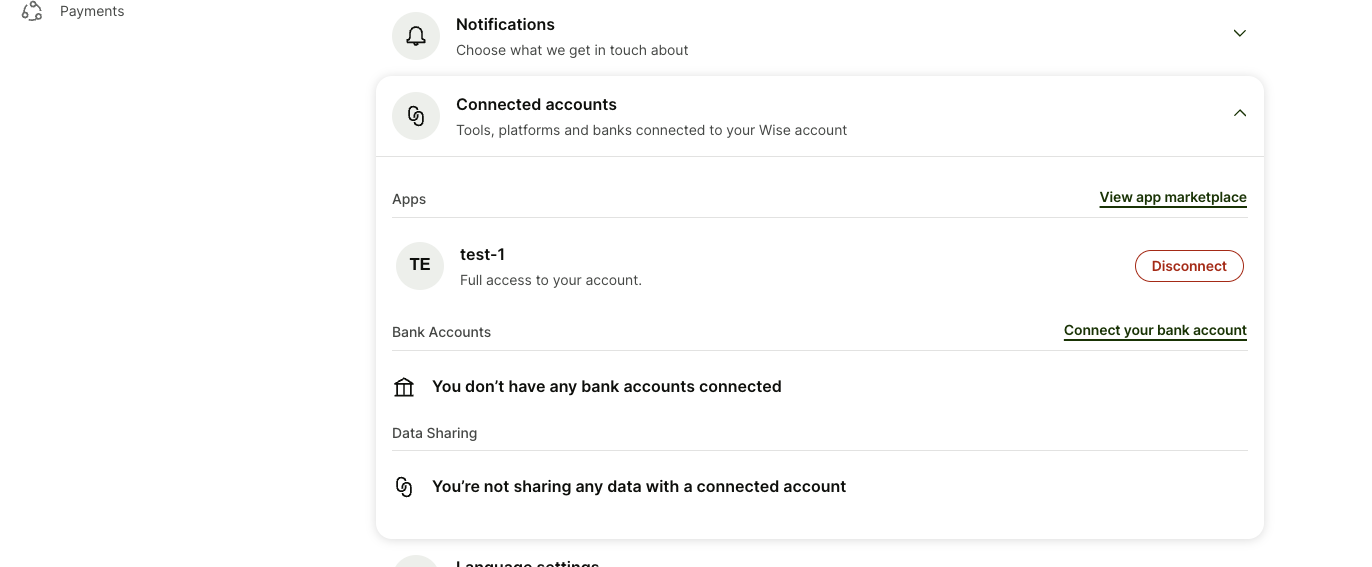
Successfully linked account on the settings page.
If you already use client credentials, follow the steps in the already using client credentials section.
Ensure you have requested your client credentials for Production and have shared the membership numbers (starting with a P, accessible via your Wise.com settings) with us.
We recommend keeping the logic you have that uses personal tokens (with mTLS disabled) in case of unforeseen issues.
- Follow the directions in Generating & Uploading a CSR.
- Switch to the new flow in Production.
If you encounter any issues, turn on the personal token logic once again and contact us immediately. As a reminder, the personal token logic will be deprecated by the end of next year, once your migration is successful.
Some profile webhook subscriptions are not available as application subscriptions. To see the full list of available options, refer to our Webhooks & Notifications documentation. If you're currently using personal tokens for any webhooks, you can continue to do so without any changes.
If you are using personal tokens, follow the steps in switching from a personal token.
Ensure you have shared the membership numbers (starting with a P, accessible via your Wise.com settings) with us.
Once you have tested thoroughly in the sandbox:
- Follow the directions in Generating & Uploading a CSR.
- Set up your integration to use mTLS in Production.
- Switch the subdomain from
api.wise.comtoapi-mtls.transferwise.com.
If you encounter any issues, roll back toapi.wise.comand let us know immediately. - Once you've told us it's working, we will enforce mTLS, and all of your endpoints will need to use the new subdomain.