Strong customer authentication (SCA) is a security measure that requires customers to provide multiple forms of identification to verify their identity before accessing sensitive information or performing high-risk transactions.
Wise provides endpoints that allow your customers to complete SCA, adding an extra layer of security to help reduce fraud. SCA is required for both high-risk and low-risk operations.
Examples of high-risk operations include:
An operation like retrieving a balance statement is considered low-risk.
You can access all SCA-protected endpoints using the authentication flow described below. However, we offer an alternative SCA session option, which allows users to perform lower-risk actions within a 5-minute window after successfully completing SCA once.
Before implementing SCA for your integration, be sure to discuss with your Implementation team to ensure you are using the right method for your use case.
Wise offers four authentication methods, categorized by authentication type. The SCA framework defines three authentication types:
- Knowledge: something the customer knows (like a password)
- Possession: something the customer owns (like a mobile phone)
- Inherence: something the customer is (like a fingerprint)
To perform a higher-risk operation, at least two authentication methods of different types must be registered with Wise. We recommend enrolling in a third authentication method to serve as an alternative in case one of the primary methods cannot be used.
| Method | Authentication type | Description |
|---|---|---|
| PIN | Knowledge | A 4-digit code only known by the customer. See the pin example section. |
| Device fingerprint | Possession | A unique identifier generated on the device that is tracked as a proof of authenticity showing that the device is owned by the customer. See the device fingerprint example. |
| Phone-based OTP | Possession | An OTP code sent to a pre-registered phone number with Wise. See the phone OTP example. |
| FaceTec | Inherence | A digital representation of a customer's facial features used as biometric authentication. See the facemap example. |
An SCA flow is composed of two parts:
Enrollment: First, determine which authentication factors you want your customers to use for accessing SCA-protected endpoints. Register these factors with Wise for each customer by calling the related SCA endpoints (PIN, Device fingerprints, OTP, or Facemap). They will serve as a reference when customers are required to complete SCA challenges.
Verification: Certain high-risk endpoints require customers to verify their identity through SCA challenges. These endpoints remain inaccessible until a cleared authentication credential is provided. To clear this credential, the customer must successfully complete at least two challenges by verifying pre-enrolled authentication factors. Once the required challenges are passed, the authentication credential can be used to access the restricted resource.
The customer has to provide authentication factors that are used to prove their identity. These are commonly described by something they are, something they know, and something they have.
It's important to provide an onboarding flow in your application that sets up SCA enrollment for your end customers.
We strongly recommend providing fallback challenges for your customers in case they are unable to complete one of the primary challenge methods.
PIN: For PIN-based authentication, it's important to collect the PIN information directly from the end customer through a secure client-side encryption method. This ensures that the PIN is not compromised during transmission.
Device fingerprint: For device fingerprint-based authentication, it's important to use client-side encryption to collect the information directly from the device, and then forward the encrypted information securely to Wise. You should never persist the device fingerprint in any form. This ensures that the fingerprint is collected securely and accurately represents the user's device.
Phone-based OTP: For phone-based OTP authentication, Wise offers multiple OTP methods such as SMS, Voice, and WhatsApp. Use a secure endpoint provided by Wise to update the end user's phone number, and perform phone number verification on your end before updating the information with Wise.
FaceTec: To implement FaceTec-based authentication, integrate with FaceTec and propagate the FaceMap to Wise for verification.
When your users are interacting with Wise, a high-risk endpoint might return a 403 status code along with these two fields in the response header:
x-2fa-approval-resultwith valueREJECTEDindicating the request requires additional authentication.x-2fa-approvalreturning a unique identifier text that represent the authentication credentials (OTT) to be verified and cleared.
For more information on how to manage strong customer authentication using the response header values, refer to our one-time token guide.
To obtain the list of challenges linked to the authentication credentials or to check the status of SCA challenges, use the get status of a one time token endpoint and set the One-Time-Token field in the request header.
Use these endpoints to verify an authentication factor and clear a challenge:
A verified authentication factor will return a successful HTTP status code. You can verify this by calling get status of a one time token endpoint and checking the passed field for the associated challenge.
Please note that for phone-based OTP authentication method, you have to call a trigger endpoint. This allows end users to choose when to send the OTP code and which phone number to send the message to.
When at least two authentication methods are verified, the authentication credential (OTT) is cleared.
You can now access the restricted endpoint by including the cleared authentication credential in the x-2fa-approval header of your request.
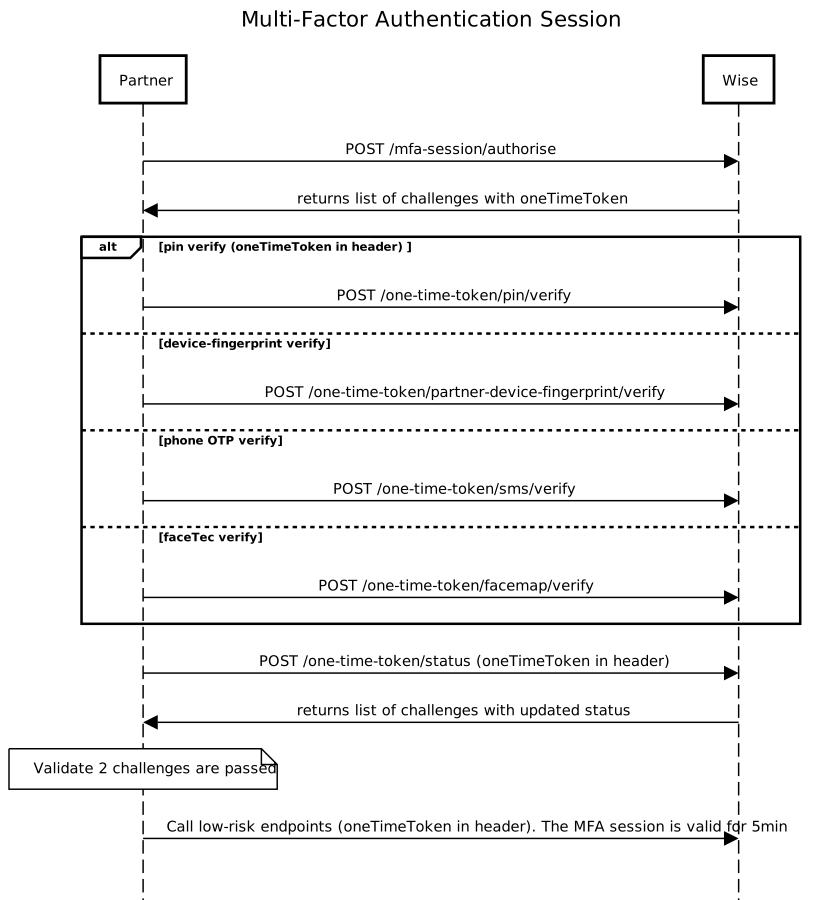
An SCA session can be set up for low-risk operations. Once the customer successfully performs SCA, this session remains valid for 5 minutes until it expires. During this 5-minute period, customers can access any low-risk endpoints without performing SCA for each protected endpoint.
Please be aware that high-risk transactions, like payment transfers, may still require your users to perform SCA.
This is a walkthrough of how to use PIN as an authentication method for SCA, including setting it up for your end customers.
All PIN-related endpoints use Jose direct encryption for secure data encryption in transit. It is essential to never persist this sensitive data in your application and only retrieve it directly from the customer.
Use the Create a PIN endpoint to allow customers to set up their PIN with Wise directly.
This will allow customers to send their desired PIN to Wise in a direct encrypted manner, which does not expose the value to Wise.
Once an end customer's PIN is created, it can be used as an authentication factor to clear an SCA challenge.
This image illustrates the interaction between the partner and Wise.

Partner makes an HTTP call to get balance account statement, which is an SCA protected endpoint.
Request - Get balance account statement
- Production Environmenthttps://api.wise.com/2026Q4/profiles/{profileId}/balance-statements/{balanceId}/statement.json
- Sandbox Environmenthttps://api.wise-sandbox.com/2026Q4/profiles/{profileId}/balance-statements/{balanceId}/statement.json
curl -i -X GET \
  'https://api.wise.com/2026Q4/profiles/12345/balance-statements/64/statement.json?currency=EUR&intervalStart=2025-03-01T00%3A00%3A00.000Z&intervalEnd=2025-04-30T23%3A59%3A59.999Z&type=COMPACT&statementLocale=en' \
  -H 'Authorization: Bearer <YOUR_JWT_HERE>' \
  -H 'X-External-Correlation-Id: f47ac10b-58cc-4372-a567-0e02b2c3d479'
Wise rejects the request with status 403 Forbidden.
HTTP/1.1 403 Forbidden
Date: Wed, 06 Dec 2023 08:57:34 GMT
x-2fa-approval: bb676aeb-7c4d-4930-bb55-ab949fd3fd87
x-2fa-approval-result: REJECTED
...other headersPartner gets status of a one time token to get all required challenges to clear this OTT.
Request - Get status of one time token
- Production Environmenthttps://api.wise.com/v1/identity/one-time-token/status
- Sandbox Environmenthttps://api.wise-sandbox.com/v1/identity/one-time-token/status
curl -i -X GET \
  https://api.wise.com/v1/identity/one-time-token/status \
  -H 'Authorization: Bearer <YOUR_JWT_HERE>' \
  -H 'One-Time-Token: string' \
  -H 'X-External-Correlation-Id: f47ac10b-58cc-4372-a567-0e02b2c3d479'
Wise returns a one time token that describes all required challenges.
For the complete list of challenges available, refer to ChallengeType.
{
  "oneTimeTokenProperties": {
    "oneTimeToken": "bb676aeb-7c4d-4930-bb55-ab949fd3fd87",
    "challenges": [
      {
        "primaryChallenge": {
          "type": "PIN",
          "viewData": {
            "attributes": {
              "userId": 6146956
            }
          }
        },
        "alternatives": [],
        "required": true,
        "passed": false
      }
    ],
    "validity": 3600,
    "actionType": "BALANCE__GET_STATEMENT",
    "userId": 6146956
  }
}Partner verifies PIN by passing the OTT.
Request - Verify PIN
- Production Environmenthttps://api.wise.com/v1/one-time-token/pin/verify
- Sandbox Environmenthttps://api.wise-sandbox.com/v1/one-time-token/pin/verify
curl -i -X POST \
  https://api.wise-sandbox.com/v1/one-time-token/pin/verify \
  -H 'Authorization: Bearer <YOUR_TOKEN_HERE>' \
  -H 'Accept: application/jose+json' \
  -H 'Accept-Encoding: identity' \
  -H 'Content-Type: application/jose+json' \
  -H 'Content-Encoding: identity' \
  -H 'X-TW-JOSE-Method: jwe' \
  -H 'One-Time-Token: <one time token>' \
  -d 'eyJlbmMiOiJBMjU2R0NNIiwi...'
Wise returns one time token properties after a successful pin verification.
- Assuming that the challenges array field is empty, indicating that the OTT is now usable.
- If you are unsure, you can always get status of a one time token again.
- It is possible that the challenges array returns type of challenge. In that case, please perform the verification flow as written in our guides.
Response - Verify PIN
"eyJlbmMiOiJBMjU2R0NNIiwi..."
Partner calls the Get Balance Statement endpoint with the approved OTT.
Request - Get balance account statement
- Production Environmenthttps://api.wise.com/2026Q4/profiles/{profileId}/balance-statements/{balanceId}/statement.json
- Sandbox Environmenthttps://api.wise-sandbox.com/2026Q4/profiles/{profileId}/balance-statements/{balanceId}/statement.json
curl -i -X GET \
  'https://api.wise.com/2026Q4/profiles/12345/balance-statements/64/statement.json?currency=EUR&intervalStart=2025-03-01T00%3A00%3A00.000Z&intervalEnd=2025-04-30T23%3A59%3A59.999Z&type=COMPACT&statementLocale=en' \
  -H 'Authorization: Bearer <YOUR_JWT_HERE>' \
  -H 'X-External-Correlation-Id: f47ac10b-58cc-4372-a567-0e02b2c3d479' \
  -H 'x-2fa-approval: bb676aeb-7c4d-4930-bb55-ab949fd3fd87'
Wise returns the balance account statement.
Response - Get balance account statement
{
  "accountHolder": {
    "type": "PERSONAL",
    "address": {
      "addressFirstLine": "Veerenni 24",
      "city": "Tallinn",
      "postCode": "12112",
      "stateCode": "",
      "countryName": "Estonia"
    },
    "firstName": "Oliver",
    "lastName": "Wilson"
  },
  "issuer": {
    "name": "TransferWise Ltd.",
    "firstLine": "56 Shoreditch High Street",
    "city": "London",
    "postCode": "E1 6JJ",
    "stateCode": "",
    "country": "United Kingdom"
  },
  "bankDetails": {},
  "transactions": [
    {
      "type": "DEBIT",
      "date": "2018-04-30T08:47:05.832Z",
      "amount": { … },
      "totalFees": { … },
      "details": { … },
      "exchangeDetails": { … },
      "runningBalance": { … },
      "referenceNumber": "CARD-249281"
    }
  ],
  "endOfStatementBalance": {
    "value": 9.94,
    "currency": "EUR"
  },
  "query": {
    "intervalStart": "2018-03-01T00:00:00Z",
    "intervalEnd": "2018-04-30T23:59:59.999Z",
    "currency": "EUR",
    "accountId": 64
  }
}
This is a walkthrough of how to use device fingerprint as an authentication method for SCA, including setting it up for your end customers.
All related endpoints use Jose direct encryption for secure data encryption in transit. It is essential to never persist this sensitive data in your application and only retrieve it directly from the customer.
Use the Create a device fingerprint endpoint to allow customers to set up their device fingerprint with Wise directly.
This will allow customers to send their device fingerprint to Wise in a direct encrypted manner to be used as an authentication method.
Wise allows up to three device fingerprints to be registered at any given time. If your customer has more than three devices connected to the account, you will need to delete unused device fingerprints using our delete fingerprint endpoint.
When an end customer's device fingerprint is set up, it can be used as an authentication factor to clear an SCA challenge.
The image below illustrates the interaction between the Partner and Wise.
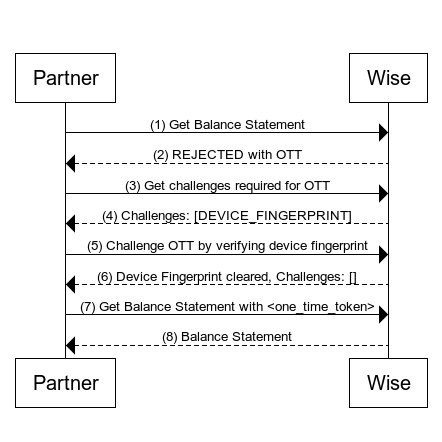
Partner makes an HTTP call to the get balance account statement endpoint, which is an SCA protected endpoint.
Request - Get balance account statement
- Production Environmenthttps://api.wise.com/2026Q4/profiles/{profileId}/balance-statements/{balanceId}/statement.json
- Sandbox Environmenthttps://api.wise-sandbox.com/2026Q4/profiles/{profileId}/balance-statements/{balanceId}/statement.json
curl -i -X GET \
  'https://api.wise.com/2026Q4/profiles/12345/balance-statements/64/statement.json?currency=EUR&intervalStart=2025-03-01T00%3A00%3A00.000Z&intervalEnd=2025-04-30T23%3A59%3A59.999Z&type=COMPACT&statementLocale=en' \
  -H 'Authorization: Bearer <YOUR_JWT_HERE>' \
  -H 'X-External-Correlation-Id: f47ac10b-58cc-4372-a567-0e02b2c3d479'
Wise rejects the request with status 403 Forbidden.
HTTP/1.1 403 Forbidden
Date: Wed, 06 Dec 2023 08:57:34 GMT
x-2fa-approval: bb676aeb-7c4d-4930-bb55-ab949fd3fd87
x-2fa-approval-result: REJECTED
...other headersPartner gets status of a one time token to get all required challenges to clear this OTT.
Request - Get status of one time token
- Production Environmenthttps://api.wise.com/v1/identity/one-time-token/status
- Sandbox Environmenthttps://api.wise-sandbox.com/v1/identity/one-time-token/status
curl -i -X GET \
  https://api.wise.com/v1/identity/one-time-token/status \
  -H 'Authorization: Bearer <YOUR_JWT_HERE>' \
  -H 'One-Time-Token: string' \
  -H 'X-External-Correlation-Id: f47ac10b-58cc-4372-a567-0e02b2c3d479'
Wise returns a one time token that describes all required challenges.
For the complete list of challenges available, refer to ChallengeType.
{
  "oneTimeTokenProperties": {
    "oneTimeToken": "bb676aeb-7c4d-4930-bb55-ab949fd3fd87",
    "challenges": [
      {
        "primaryChallenge": {
          "type": "PARTNER_DEVICE_FINGERPRINT",
          "viewData": {
            "attributes": {
              "userId": 6146956
            }
          }
        },
        "alternatives": [],
        "required": true,
        "passed": false
      }
    ],
    "validity": 3600,
    "actionType": "BALANCE__GET_STATEMENT",
    "userId": 6146956
  }
}Partner verifies device fingerprint by passing the OTT.
curl -X POST https://api.wise-sandbox.com/one-time-token/partner-device-fingerprint/verify \
     -H 'Authorization: Bearer <your api token>' \
     -H 'Accept: application/jose+json' \
     -H 'Accept-Encoding: identity' \
     -H 'Content-Type: application/jose+json' \
     -H 'Content-Encoding: identity' \
     -H 'X-TW-JOSE-Method: jwe' \
     -H 'One-Time-Token: <one time token>'
     -d 'eyJlbmMiOiJBMjU2R0NNIiwi...'
Wise returns one time token properties after successful verification.
- Assuming that the challenges array field is empty, indicating that the OTT is now usable.
- If you are unsure, you can always get status of a one time token again.
- It is possible that the challenges array returns type of challenge. In that case, perform the verification flow as written in our guides.
eyJlbmMiOiJBMjU2R0NNIiwi...Partner calls the Get Balance Statement endpoint with the approved OTT.
Request - Get balance account statement
- Production Environmenthttps://api.wise.com/2026Q4/profiles/{profileId}/balance-statements/{balanceId}/statement.json
- Sandbox Environmenthttps://api.wise-sandbox.com/2026Q4/profiles/{profileId}/balance-statements/{balanceId}/statement.json
curl -i -X GET \
  'https://api.wise.com/2026Q4/profiles/12345/balance-statements/64/statement.json?currency=EUR&intervalStart=2025-03-01T00%3A00%3A00.000Z&intervalEnd=2025-04-30T23%3A59%3A59.999Z&type=COMPACT&statementLocale=en' \
  -H 'Authorization: Bearer <YOUR_JWT_HERE>' \
  -H 'X-External-Correlation-Id: f47ac10b-58cc-4372-a567-0e02b2c3d479' \
  -H 'x-2fa-approval: bb676aeb-7c4d-4930-bb55-ab949fd3fd87'
Wise returns the balance account statement.
Response - Get balance account statement
{
  "accountHolder": {
    "type": "PERSONAL",
    "address": {
      "addressFirstLine": "Veerenni 24",
      "city": "Tallinn",
      "postCode": "12112",
      "stateCode": "",
      "countryName": "Estonia"
    },
    "firstName": "Oliver",
    "lastName": "Wilson"
  },
  "issuer": {
    "name": "TransferWise Ltd.",
    "firstLine": "56 Shoreditch High Street",
    "city": "London",
    "postCode": "E1 6JJ",
    "stateCode": "",
    "country": "United Kingdom"
  },
  "bankDetails": {},
  "transactions": [
    {
      "type": "DEBIT",
      "date": "2018-04-30T08:47:05.832Z",
      "amount": { … },
      "totalFees": { … },
      "details": { … },
      "exchangeDetails": { … },
      "runningBalance": { … },
      "referenceNumber": "CARD-249281"
    }
  ],
  "endOfStatementBalance": {
    "value": 9.94,
    "currency": "EUR"
  },
  "query": {
    "intervalStart": "2018-03-01T00:00:00Z",
    "intervalEnd": "2018-04-30T23:59:59.999Z",
    "currency": "EUR",
    "accountId": 64
  }
}
This is a walkthrough of how to use phone as an authentication method for SCA, including setting it up for your end customers.
Wise provides three methods for delivering one-time password (OTP) codes to your end-user devices:
- SMS
- Voice
Please note that you are responsible for managing the lifecycle of the phone number so Wise can send OTP codes to your end customers when necessary.
| Lifecycle | Description |
|---|---|
| Create | After successfully onboarding a customer and verifying their phone number through your application, create the respective verified phone number with Wise. |
| Delete | If customer has removed or lost access to the phone number, delete the respective phone number with Wise. |
When an end customer's phone number is set up, it can be used as an authentication factor to clear an SCA challenge.
The image below illustrates the interaction between the Partner and Wise.
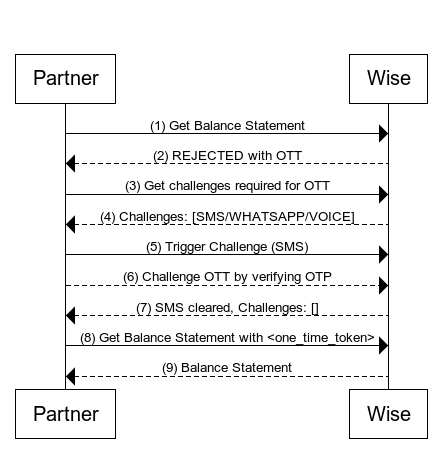
Partner makes an HTTP call to the get balance account statement endpoint, which is an SCA protected endpoint.
Request - Get balance account statement
- Production Environmenthttps://api.wise.com/2026Q4/profiles/{profileId}/balance-statements/{balanceId}/statement.json
- Sandbox Environmenthttps://api.wise-sandbox.com/2026Q4/profiles/{profileId}/balance-statements/{balanceId}/statement.json
curl -i -X GET \
  'https://api.wise.com/2026Q4/profiles/12345/balance-statements/64/statement.json?currency=EUR&intervalStart=2025-03-01T00%3A00%3A00.000Z&intervalEnd=2025-04-30T23%3A59%3A59.999Z&type=COMPACT&statementLocale=en' \
  -H 'Authorization: Bearer <YOUR_JWT_HERE>' \
  -H 'X-External-Correlation-Id: f47ac10b-58cc-4372-a567-0e02b2c3d479'
Wise rejects the request with status 403 Forbidden.
HTTP/1.1 403 Forbidden
Date: Wed, 06 Dec 2023 08:57:34 GMT
x-2fa-approval: bb676aeb-7c4d-4930-bb55-ab949fd3fd87
x-2fa-approval-result: REJECTED
...other headersPartner gets status of a one time token to get all required challenges to clear this OTT.
Request - Get status of one time token
- Production Environmenthttps://api.wise.com/v1/identity/one-time-token/status
- Sandbox Environmenthttps://api.wise-sandbox.com/v1/identity/one-time-token/status
curl -i -X GET \
  https://api.wise.com/v1/identity/one-time-token/status \
  -H 'Authorization: Bearer <YOUR_JWT_HERE>' \
  -H 'One-Time-Token: string' \
  -H 'X-External-Correlation-Id: f47ac10b-58cc-4372-a567-0e02b2c3d479'
Wise returns a one time token that describes all required challenges.
For the complete list of challenges available, refer to ChallengeType.
The alternatives field suggests that the end user has the option to select a trigger channel to receive the OTP code, rather than receiving it via the default channel.
{
  "oneTimeTokenProperties": {
    "oneTimeToken": "bb676aeb-7c4d-4930-bb55-ab949fd3fd87",
    "challenges": [
      {
        "primaryChallenge": {
          "type": "SMS",
          "viewData": {
            "attributes": {
              "userId": 6146956
            }
          }
        },
        "alternatives": [
          {
            "type": "WHATSAPP",
            "viewData": {
              "attributes": {
                "userId": 6146956
              }
            }
          },
          {
            "type": "VOICE",
            "viewData": {
              "attributes": {
                "userId": 6146956
              }
            }
          }
        ],
        "required": true,
        "passed": false
      }
    ],
    "validity": 3600,
    "actionType": "BALANCE__GET_STATEMENT",
    "userId": 6146956
  }
}Partner verifies otp by passing the OTT.
Request - Verify SMS
- Production Environmenthttps://api.wise.com/2026Q4/one-time-token/sms/verify
- Sandbox Environmenthttps://api.wise-sandbox.com/2026Q4/one-time-token/sms/verify
curl -i -X POST \
  https://api.wise.com/2026Q4/one-time-token/sms/verify \
  -H 'Authorization: Bearer <YOUR_JWT_HERE>' \
  -H 'Content-Type: application/json' \
  -H 'One-Time-Token: string' \
  -H 'X-External-Correlation-Id: f47ac10b-58cc-4372-a567-0e02b2c3d479' \
  -d '{
    "otpCode": "111111"
  }'
Wise returns one time token properties after a successful OTP code verification.
- Assuming that the challenges array field is empty, indicating that the OTT is now usable.
- If you are unsure, you can always get status of a one time token again.
- It is possible that the challenges array returns type of challenge. In that case, please perform the verification flow as written in our guides.
Response - Verify SMS
{
  "oneTimeTokenProperties": {
    "oneTimeToken": "9f5f5812-2609-4e48-8418-b64437c0c7cd",
    "challenges": [],
    "validity": 3600
  }
}
Partner calls the Get Balance Statement endpoint with the approved OTT.
Request - Get balance account statement
- Production Environmenthttps://api.wise.com/2026Q4/profiles/{profileId}/balance-statements/{balanceId}/statement.json
- Sandbox Environmenthttps://api.wise-sandbox.com/2026Q4/profiles/{profileId}/balance-statements/{balanceId}/statement.json
curl -i -X GET \
  'https://api.wise.com/2026Q4/profiles/12345/balance-statements/64/statement.json?currency=EUR&intervalStart=2025-03-01T00%3A00%3A00.000Z&intervalEnd=2025-04-30T23%3A59%3A59.999Z&type=COMPACT&statementLocale=en' \
  -H 'Authorization: Bearer <YOUR_JWT_HERE>' \
  -H 'X-External-Correlation-Id: f47ac10b-58cc-4372-a567-0e02b2c3d479' \
  -H 'x-2fa-approval: bb676aeb-7c4d-4930-bb55-ab949fd3fd87'
Wise returns the balance account statement.
Response - Get balance account statement
{
  "accountHolder": {
    "type": "PERSONAL",
    "address": {
      "addressFirstLine": "Veerenni 24",
      "city": "Tallinn",
      "postCode": "12112",
      "stateCode": "",
      "countryName": "Estonia"
    },
    "firstName": "Oliver",
    "lastName": "Wilson"
  },
  "issuer": {
    "name": "TransferWise Ltd.",
    "firstLine": "56 Shoreditch High Street",
    "city": "London",
    "postCode": "E1 6JJ",
    "stateCode": "",
    "country": "United Kingdom"
  },
  "bankDetails": {},
  "transactions": [
    {
      "type": "DEBIT",
      "date": "2018-04-30T08:47:05.832Z",
      "amount": { … },
      "totalFees": { … },
      "details": { … },
      "exchangeDetails": { … },
      "runningBalance": { … },
      "referenceNumber": "CARD-249281"
    }
  ],
  "endOfStatementBalance": {
    "value": 9.94,
    "currency": "EUR"
  },
  "query": {
    "intervalStart": "2018-03-01T00:00:00Z",
    "intervalEnd": "2018-04-30T23:59:59.999Z",
    "currency": "EUR",
    "accountId": 64
  }
}
This is a walkthrough of how to use FaceMap as an authentication method for SCA, including setting it up for your end customers. By following these steps, you can enable secure and convenient authentication for your users while meeting the regulatory requirements for online transactions.
- Wise only supports the 3D FaceMap Interoperability Between Organizations, which requires integration with FaceTec. This means that your organization must also be a consumer of FaceTec services in order to enable this flow.
- This authentication method will only be enabled upon request. Contact your implementation manager to request.
Wise leverages the FaceTec import functionality when receiving 3D FaceMaps from customers, enabling seamless integration and secure authentication processes.
The image below illustrates the interaction between frontend, backend and Wise.
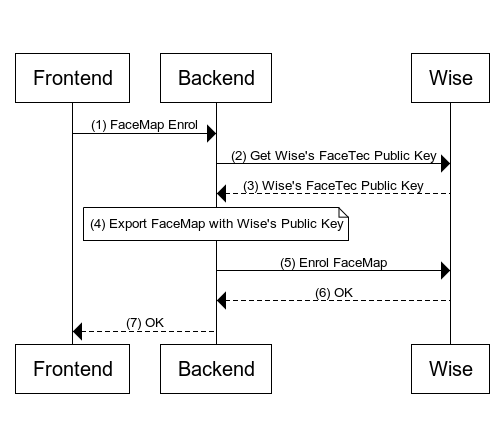
Frontend makes an HTTP call to enrol FaceMap to your backend application.
This is where the customer submits a FaceScan to your application for FaceTec enrolment.
Backend makes an HTTP call to get Wise's FaceTec public key to acquire the public key needed to do a FaceTec export.
Request - Get FaceTec public key
- Production Environmenthttps://api.wise.com/2026Q4/facetec/public-key
- Sandbox Environmenthttps://api.wise-sandbox.com/2026Q4/facetec/public-key
curl -i -X GET \
  https://api.wise.com/2026Q4/facetec/public-key \
  -H 'Authorization: Bearer <YOUR_JWT_HERE>' \
  -H 'X-External-Correlation-Id: f47ac10b-58cc-4372-a567-0e02b2c3d479'
Wise returns the public key to backend in plain text. You are encouraged to cache this public key to minimize latency, as it is not subject to frequent rotation.
Response - Get FaceTec public key
-----BEGIN PUBLIC KEY-----
Public Key Content
-----END PUBLIC KEY-----
The backend application will utilize the previously stored FaceMap and the acquired Wise's FaceTec public key as input parameters for the export function provided by FaceTec.
Upon a successful export, we will possess an encrypted FaceMap that is ready to be transmitted to Wise.
Backend makes an HTTP call to Enrol FaceMap.
Request - Enrol FaceMap
- Production Environmenthttps://api.wise.com/v1/user/facemap/enrol
- Sandbox Environmenthttps://api.wise-sandbox.com/v1/user/facemap/enrol
curl -i -X POST \
  https://api.wise.com/v1/user/facemap/enrol \
  -H 'Authorization: Bearer <YOUR_JWT_HERE>' \
  -H 'Content-Type: application/json' \
  -H 'X-External-Correlation-Id: f47ac10b-58cc-4372-a567-0e02b2c3d479' \
  -d '{
    "faceMap": "string"
}'- Wise responds with a
204 - No Contentstatus code upon successful enrollment.- Please note that a
409 - Conflictresponse indicates that the enrollment already exists and cannot be repeated.
- Please note that a
- Backend should responds with a successful HTTP status code to customer upon successful enrollment.
This guide uses the retrieving balance account statement endpoint as an example.
The image below illustrates the interaction between frontend, backend, and Wise.
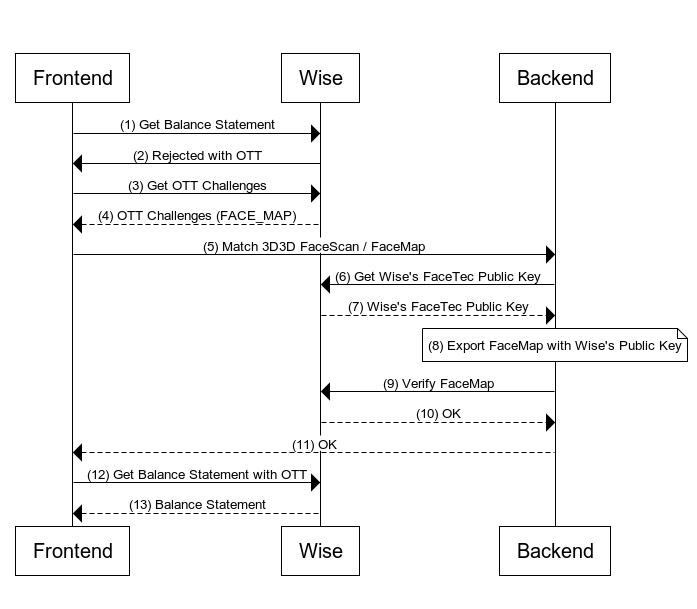
Frontend makes an HTTP call to the get balance account statement endpoint which is an SCA protected endpoint.
Request - Get balance account statement
- Production Environmenthttps://api.wise.com/2026Q4/profiles/{profileId}/balance-statements/{balanceId}/statement.json
- Sandbox Environmenthttps://api.wise-sandbox.com/2026Q4/profiles/{profileId}/balance-statements/{balanceId}/statement.json
curl -i -X GET \
  'https://api.wise.com/2026Q4/profiles/12345/balance-statements/64/statement.json?currency=EUR&intervalStart=2025-03-01T00%3A00%3A00.000Z&intervalEnd=2025-04-30T23%3A59%3A59.999Z&type=COMPACT&statementLocale=en' \
  -H 'Authorization: Bearer <YOUR_JWT_HERE>' \
  -H 'X-External-Correlation-Id: f47ac10b-58cc-4372-a567-0e02b2c3d479'
Wise rejects the request with status 403 Forbidden.
HTTP/1.1 403 Forbidden
Date: Wed, 06 Dec 2023 08:57:34 GMT
x-2fa-approval: bb676aeb-7c4d-4930-bb55-ab949fd3fd87
x-2fa-approval-result: REJECTED
...other headersFrontend gets status of a one time token to get all required challenges to clear this OTT.
Request - Get status of one time token
- Production Environmenthttps://api.wise.com/v1/identity/one-time-token/status
- Sandbox Environmenthttps://api.wise-sandbox.com/v1/identity/one-time-token/status
curl -i -X GET \
  https://api.wise.com/v1/identity/one-time-token/status \
  -H 'Authorization: Bearer <YOUR_JWT_HERE>' \
  -H 'One-Time-Token: string' \
  -H 'X-External-Correlation-Id: f47ac10b-58cc-4372-a567-0e02b2c3d479'
Wise returns a one time token that describes all required challenges.
For the complete list of challenges available, refer to ChallengeType.
{
   "oneTimeTokenProperties": {
      "oneTimeToken": "bb676aeb-7c4d-4930-bb55-ab949fd3fd87",
      "challenges": [
         {
            "primaryChallenge": {
               "type": "FACE_MAP",
               "viewData": {
                  "attributes": {
                     "userId": 6146956
                  }
               }
            },
            "alternatives": [],
            "required": true,
            "passed": false
         }
      ],
      "validity": 3600,
      "actionType": "BALANCE__GET_STATEMENT",
      "userId": 6146956
   }
}Frontend makes an HTTP call to backend to perform a match 3d 3d check.
Backend makes an HTTP call to get Wise's FaceTec public key to acquire the public key needed to do a FaceTec export.
Request - Get FaceTec public key
- Production Environmenthttps://api.wise.com/2026Q4/facetec/public-key
- Sandbox Environmenthttps://api.wise-sandbox.com/2026Q4/facetec/public-key
curl -i -X GET \
  https://api.wise.com/2026Q4/facetec/public-key \
  -H 'Authorization: Bearer <YOUR_JWT_HERE>' \
  -H 'X-External-Correlation-Id: f47ac10b-58cc-4372-a567-0e02b2c3d479'
Wise returns the public key to backend in plain text. You are encouraged to cache this public key to minimize latency, as it is not subject to frequent rotation.
Response - Get FaceTec public key
-----BEGIN PUBLIC KEY-----
Public Key Content
-----END PUBLIC KEY-----
The backend application will utilize the previously stored FaceMap and the acquired Wise's FaceTec public key as input parameters for the export function provided by FaceTec.
Upon a successful export, we will possess an encrypted FaceMap that is ready to be transmitted to Wise.
Backend makes an HTTP call to Verify FaceMap.
Request - Verify FaceMap
- Production Environmenthttps://api.wise.com/v1/one-time-token/facemap/verify
- Sandbox Environmenthttps://api.wise-sandbox.com/v1/one-time-token/facemap/verify
curl -i -X POST \
  https://api.wise.com/v1/one-time-token/facemap/verify \
  -H 'Authorization: Bearer <YOUR_JWT_HERE>' \
  -H 'Content-Type: application/json' \
  -H 'One-Time-Token: string' \
  -H 'X-External-Correlation-Id: f47ac10b-58cc-4372-a567-0e02b2c3d479' \
  -d '{
    "faceMap": "<base64_encoded_string>"
  }'
Wise returns one time token properties after a successful FaceMap verification.
- Assuming that the challenges array field is empty, indicating that the OTT is now usable.
- If you are unsure, you can always get status of a one time token again.
- Depending on the action and conditions, the challenges array may return one or more challenge types. In that case, please perform the verification flow as written in our guides.
Response - Verify FaceMap
{
  "oneTimeTokenProperties": {
    "oneTimeToken": "9f5f5812-2609-4e48-8418-b64437c0c7cd",
    "challenges": [],
    "validity": 3600
  }
}
Backend should respond with a successful HTTP status code to customer upon successful verification.
Frontend calls the Get Balance Statement endpoint with the approved OTT.
Request - Get balance account statement
- Production Environmenthttps://api.wise.com/2026Q4/profiles/{profileId}/balance-statements/{balanceId}/statement.json
- Sandbox Environmenthttps://api.wise-sandbox.com/2026Q4/profiles/{profileId}/balance-statements/{balanceId}/statement.json
curl -i -X GET \
  'https://api.wise.com/2026Q4/profiles/12345/balance-statements/64/statement.json?currency=EUR&intervalStart=2025-03-01T00%3A00%3A00.000Z&intervalEnd=2025-04-30T23%3A59%3A59.999Z&type=COMPACT&statementLocale=en' \
  -H 'Authorization: Bearer <YOUR_JWT_HERE>' \
  -H 'X-External-Correlation-Id: f47ac10b-58cc-4372-a567-0e02b2c3d479' \
  -H 'x-2fa-approval: bb676aeb-7c4d-4930-bb55-ab949fd3fd87'
Wise returns the balance account statement.
Response - Get balance account statement
{
  "accountHolder": {
    "type": "PERSONAL",
    "address": {
      "addressFirstLine": "Veerenni 24",
      "city": "Tallinn",
      "postCode": "12112",
      "stateCode": "",
      "countryName": "Estonia"
    },
    "firstName": "Oliver",
    "lastName": "Wilson"
  },
  "issuer": {
    "name": "TransferWise Ltd.",
    "firstLine": "56 Shoreditch High Street",
    "city": "London",
    "postCode": "E1 6JJ",
    "stateCode": "",
    "country": "United Kingdom"
  },
  "bankDetails": {},
  "transactions": [
    {
      "type": "DEBIT",
      "date": "2018-04-30T08:47:05.832Z",
      "amount": { … },
      "totalFees": { … },
      "details": { … },
      "exchangeDetails": { … },
      "runningBalance": { … },
      "referenceNumber": "CARD-249281"
    }
  ],
  "endOfStatementBalance": {
    "value": 9.94,
    "currency": "EUR"
  },
  "query": {
    "intervalStart": "2018-03-01T00:00:00Z",
    "intervalEnd": "2018-04-30T23:59:59.999Z",
    "currency": "EUR",
    "accountId": 64
  }
}